

Order the module
Order the Domain Reseller module from the Hostraha store: https://portal.hostraha.com/store/domain-reseller The module is white-labelled, includes a free WHMCS module, and has a one-time setup fee.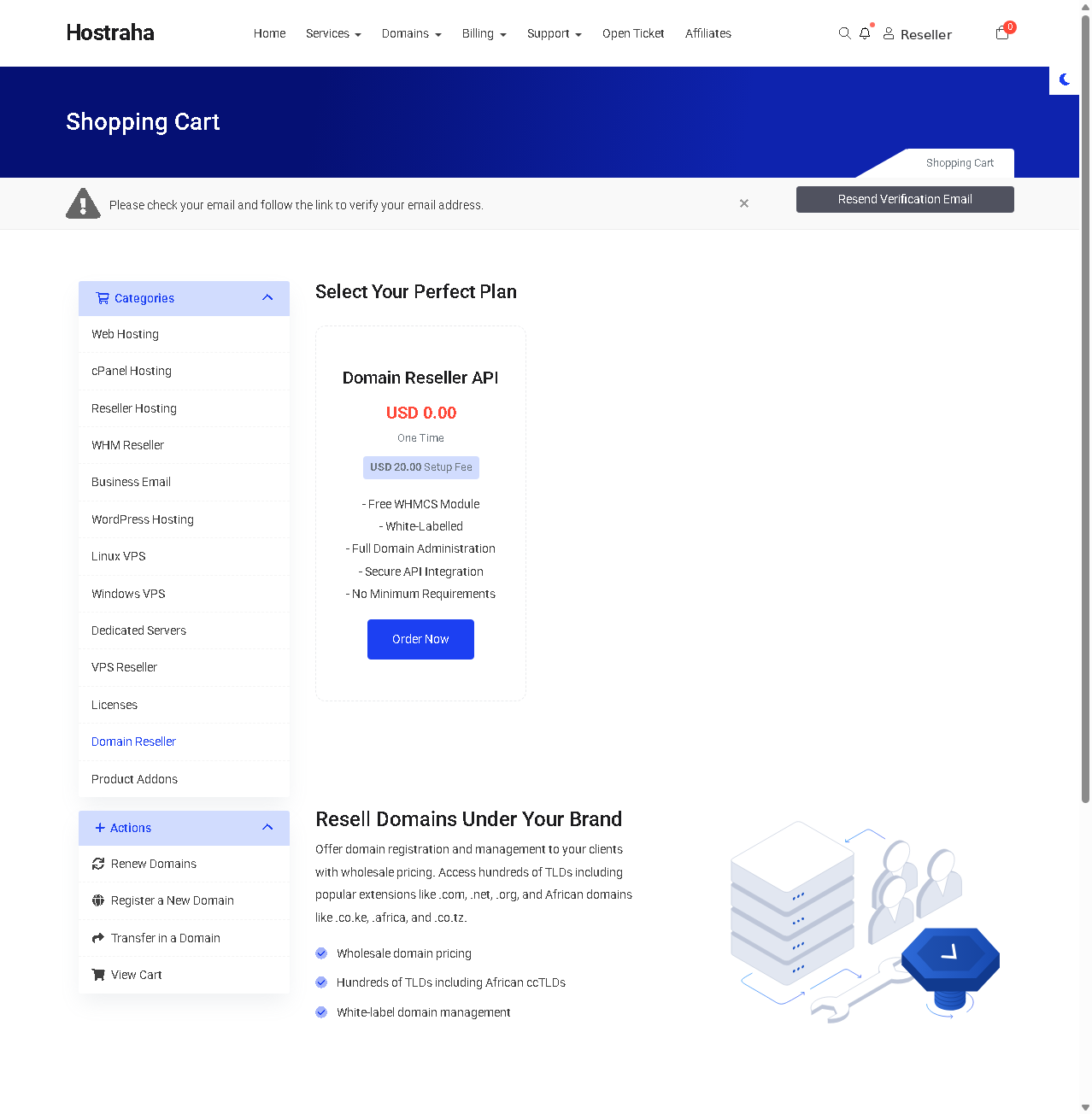
The Domain Reseller product in the Hostraha store.
Verify your account email
After ordering, the portal shows the notice “Please check your email and follow the link to verify your email address.” Open that email and follow the verification link.Open the Reseller Area
Once the module is active, open Domains → Reseller Area from the portal navigation: https://portal.hostraha.com/index.php?m=DomainsReseller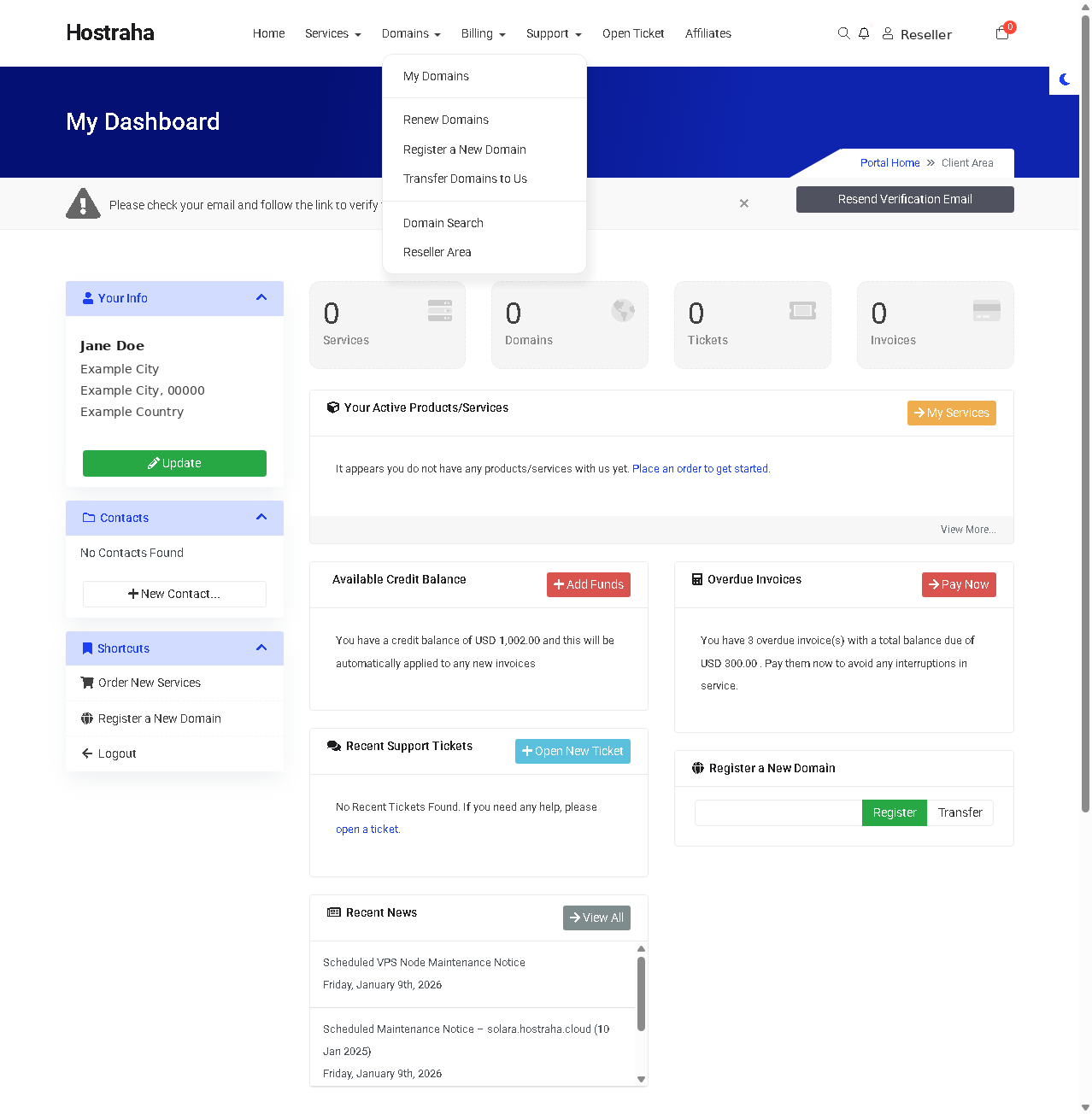
The Domains menu, with the Reseller Area link.
Orders
The Orders tab lists your domain orders with amount, payment status, provisioning status, and date.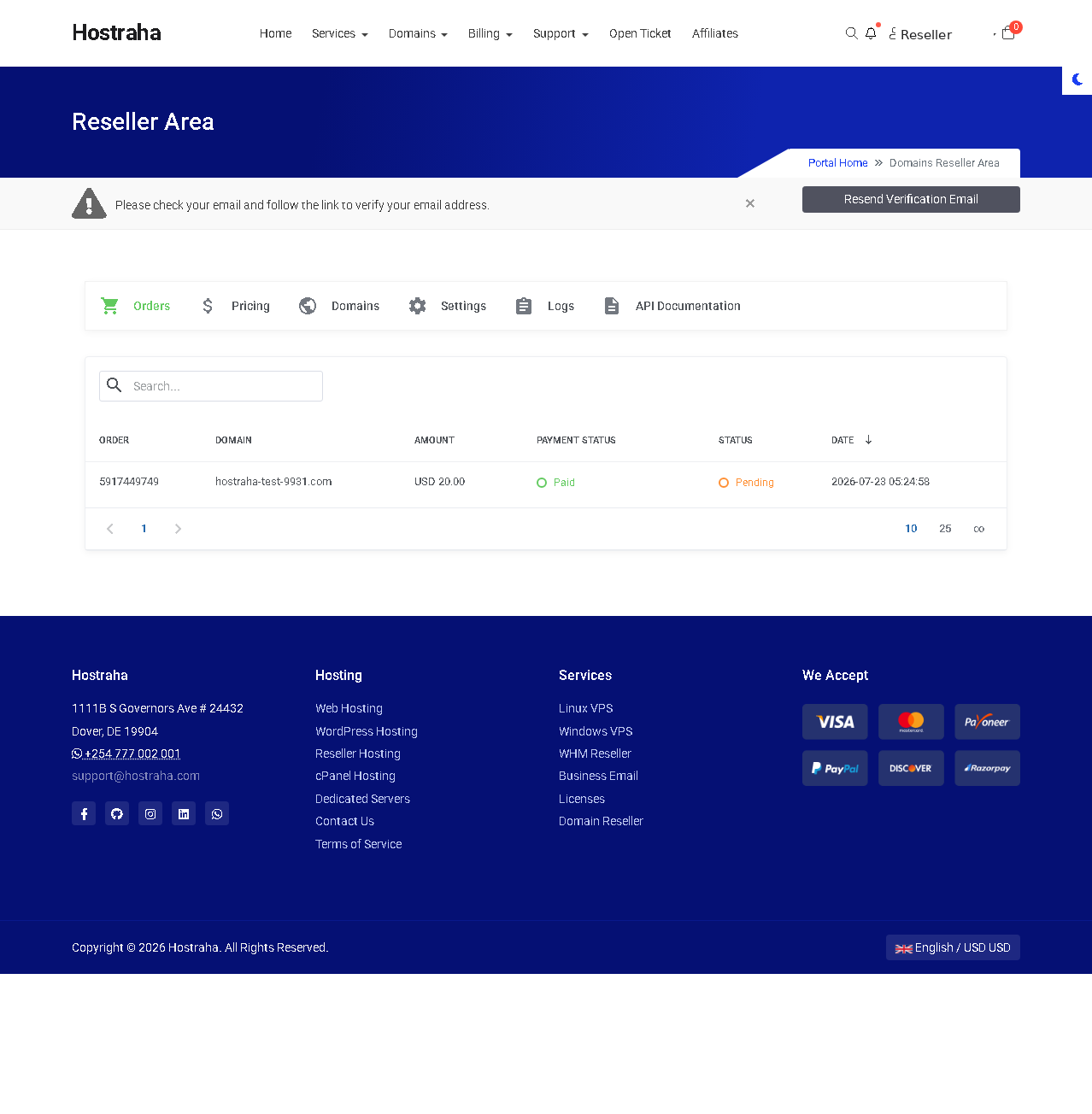
Orders tab, listing domain orders and their status.
Pricing
The Pricing tab shows the list price of every TLD available to your account. The API exposes the same data through pricing and TLDs.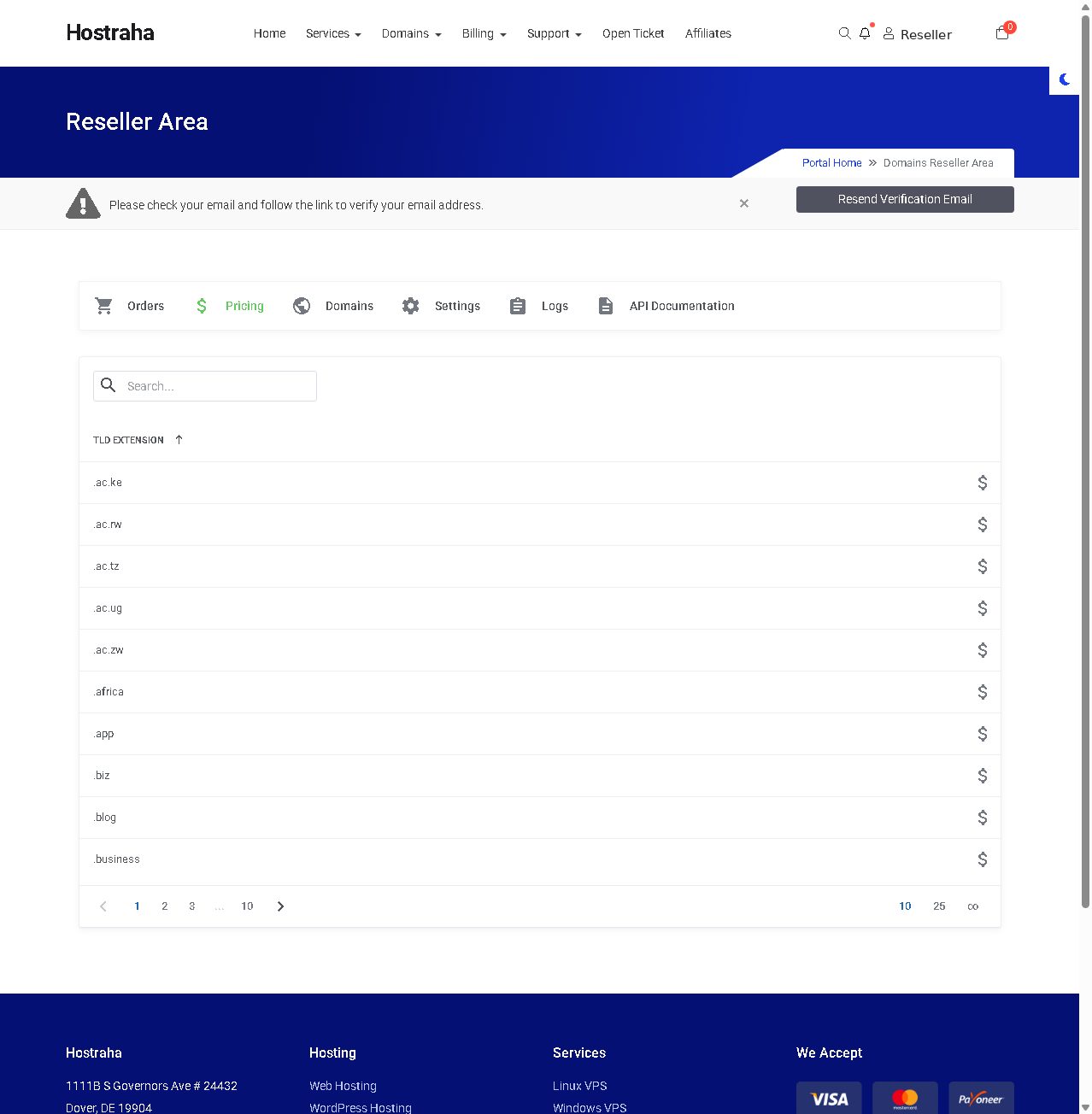
Pricing tab, listing TLD extensions and their prices.
Domains
The Domains tab lists the domains in your reseller account with their status and expiry date. Manage any of them through the domain management endpoints.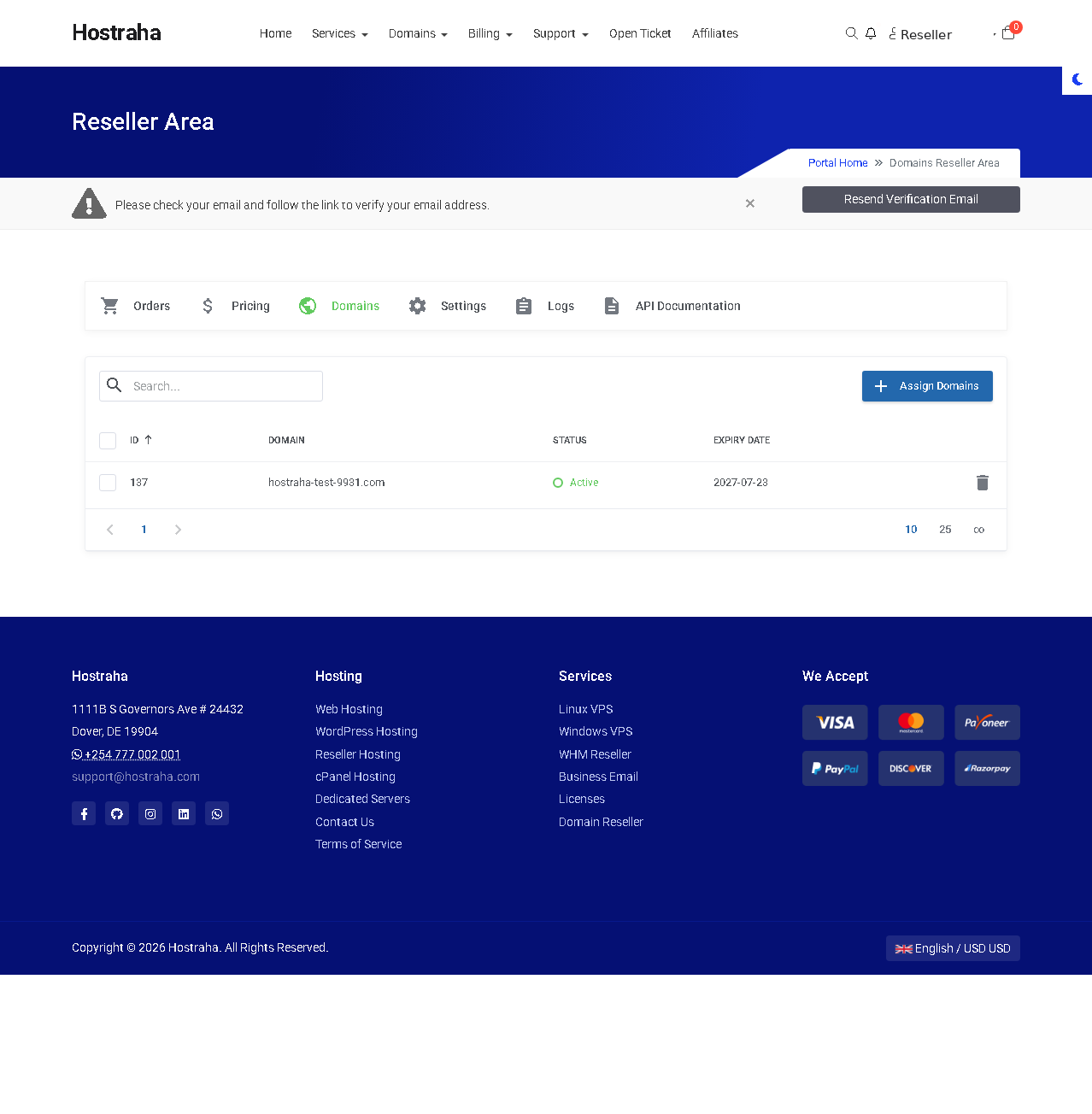
Domains tab, showing an active domain and its expiry date.
Get your API credentials
Open the Settings tab. The API Details form holds everything you need to authenticate:- Credits — your prepaid balance in your account’s currency. Ordering deducts from it. See Credits and billing.
- API URL — the endpoint you send requests to.
- API Email Address — your username for the
usernameheader. - API Key — the secret used to compute the token. Use the Generate API Key button to create or rotate it.
- Allowed IP Addresses — an allowlist of IPs permitted to call the API. Add your server IPs and click Submit.
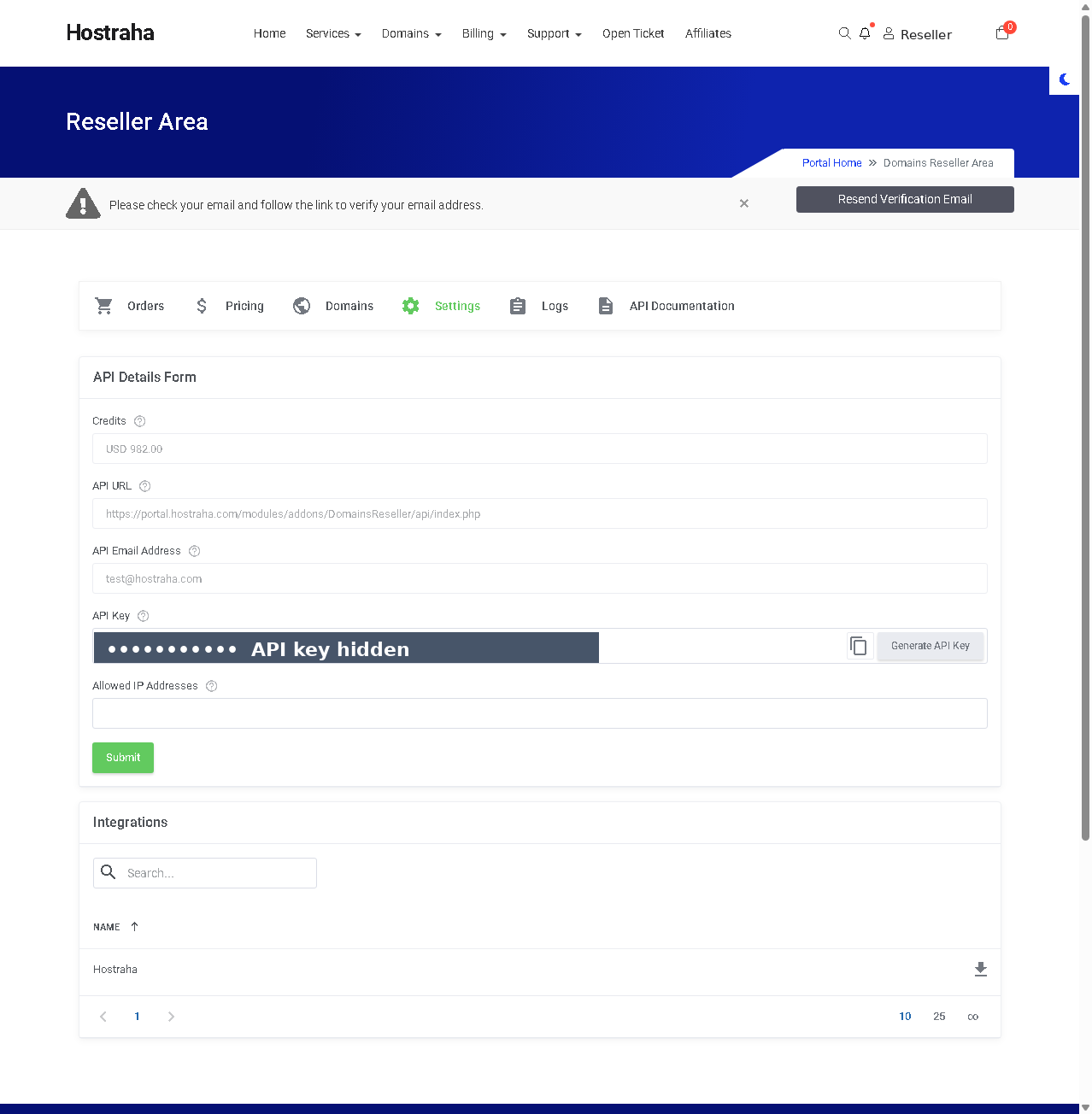
Settings tab: the API Details form and the WHMCS module under Integrations. The API key is hidden here.
Logs
The Logs tab records every API request against your account — the action, request, response, timestamp, and source IP. Use it to audit calls and debug integrations.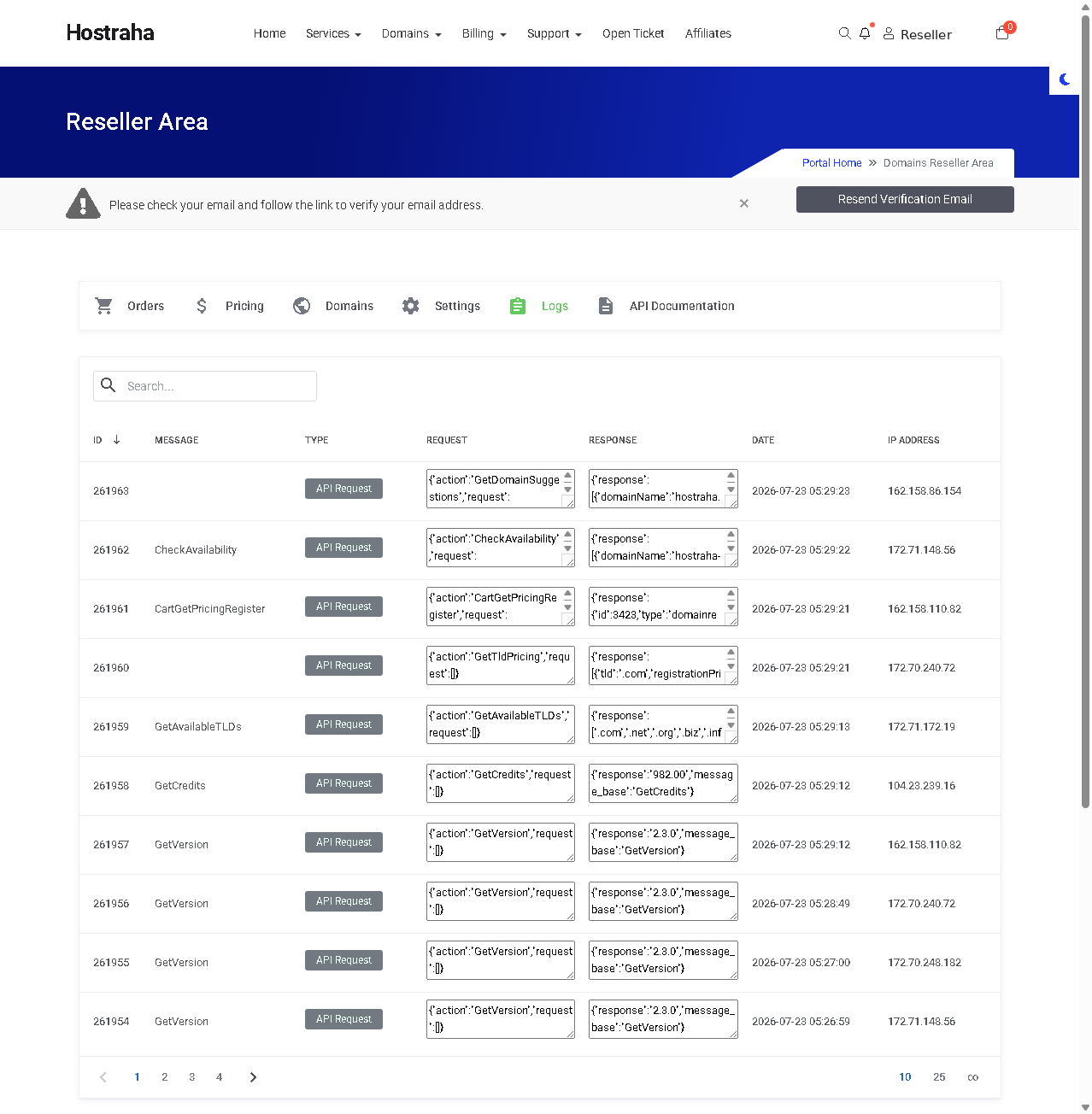
Logs tab, recording each API request with its response and source IP.
API Documentation
The API Documentation tab lists every call and model directly in the portal, along with the endpoint and the token formula. Use it as the authoritative reference for your account alongside these docs.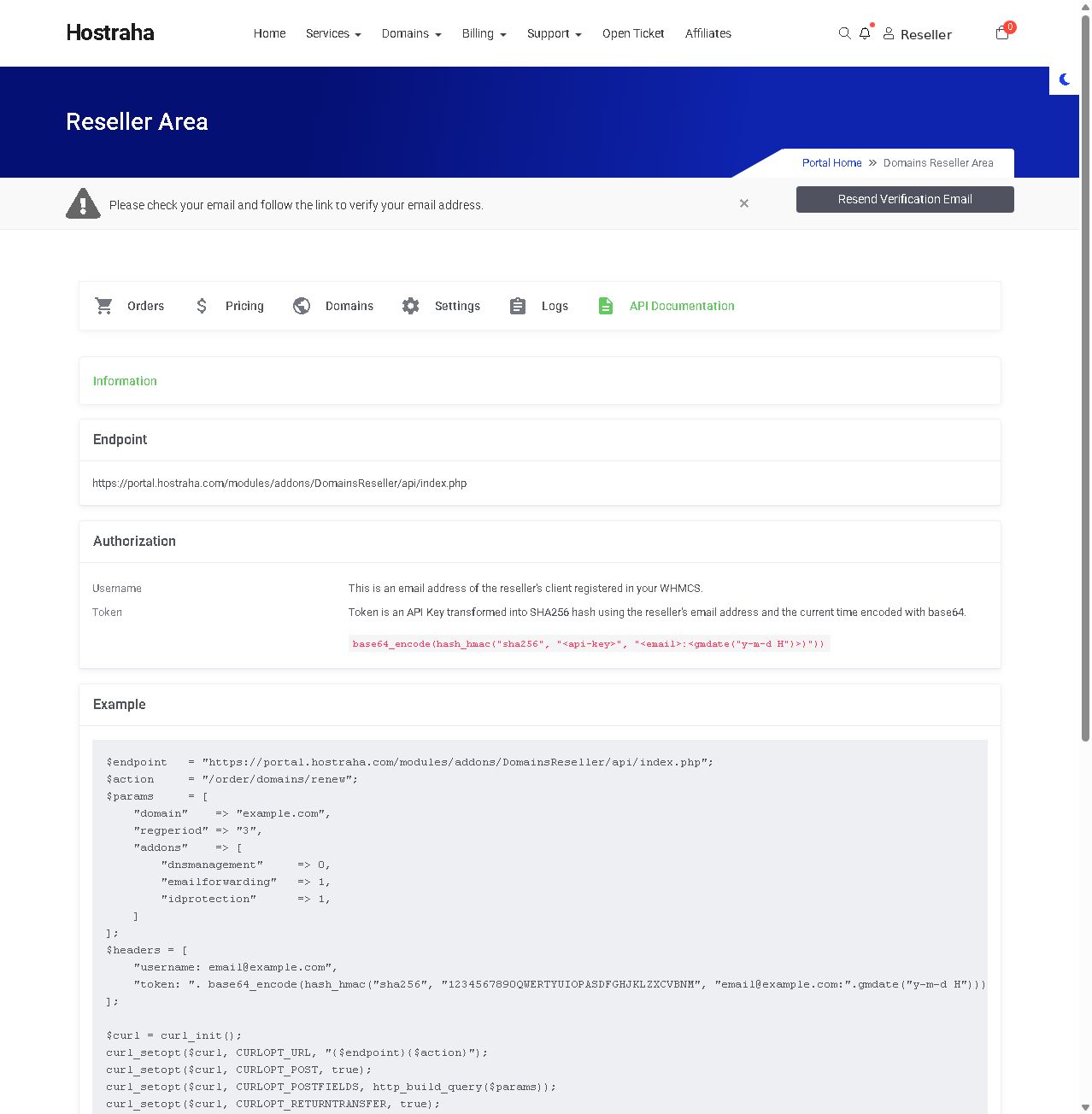
API Documentation tab: endpoint, authorization, and a request example.